The Player App
Players find and play your games with the Rollick player app (iOS and Android). This page describes what your players see, from opening the app to playing your game, so that you know where they will find what you design. You will also use the app yourself, to test your games as you build them.
Outside a Game
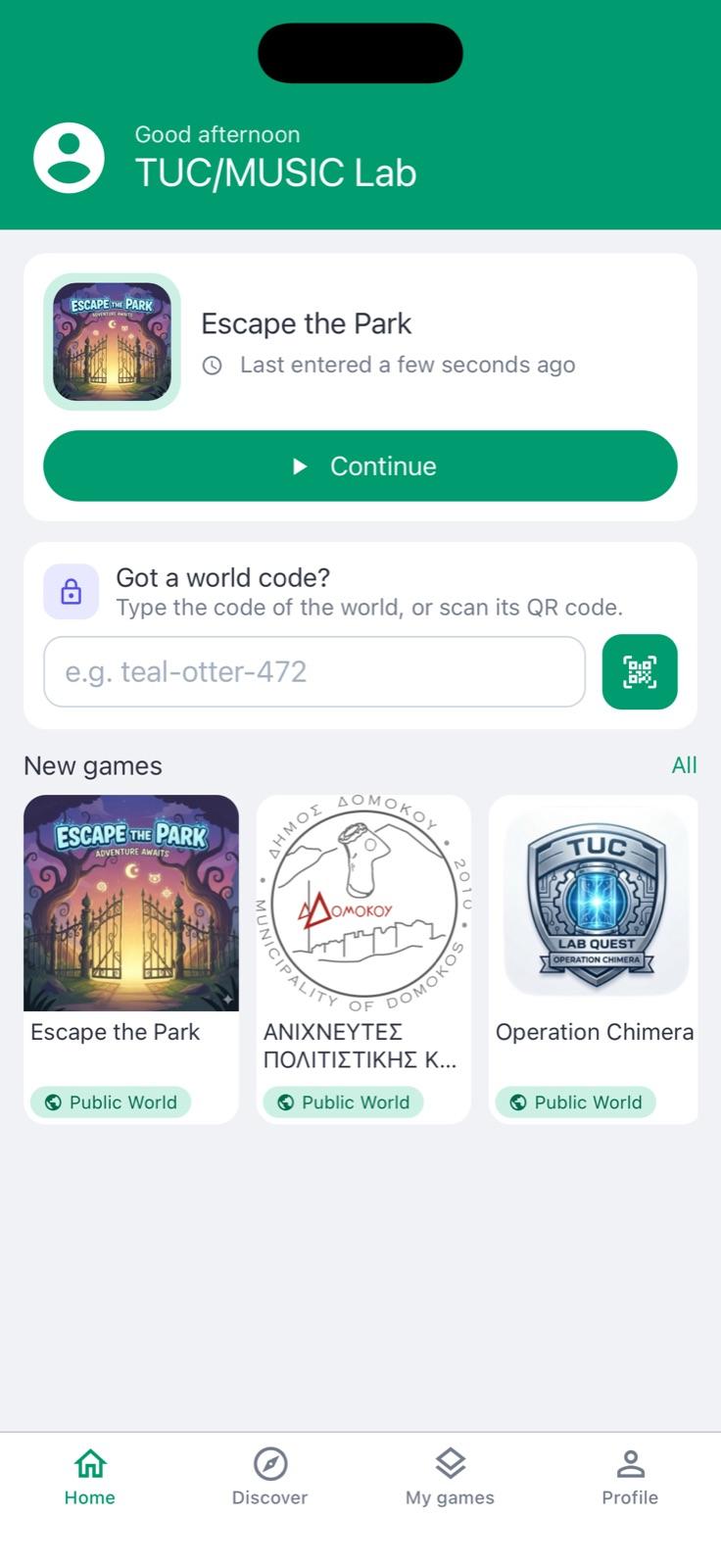
After signing in (with Apple, Google, Facebook or an email), the app opens on four tabs at the bottom of the screen:
| Tab | What the player finds there |
|---|---|
| Home | Continue for the game they played last, a Got a world code? box to join a private world (typed or scanned from a QR code), and the latest published games. |
| Discover | All published games, or only those Near me. Each game says how it is played: in the Public World, in private worlds, or only with a code. |
| My games | The games they are playing (Active), the games that are over (Finished) and, for designers, the working versions they can test. Under Active, Worlds I created lists their private worlds with their codes. |
| Profile | Their account, settings, permissions, and the terms and privacy policy. |
 | 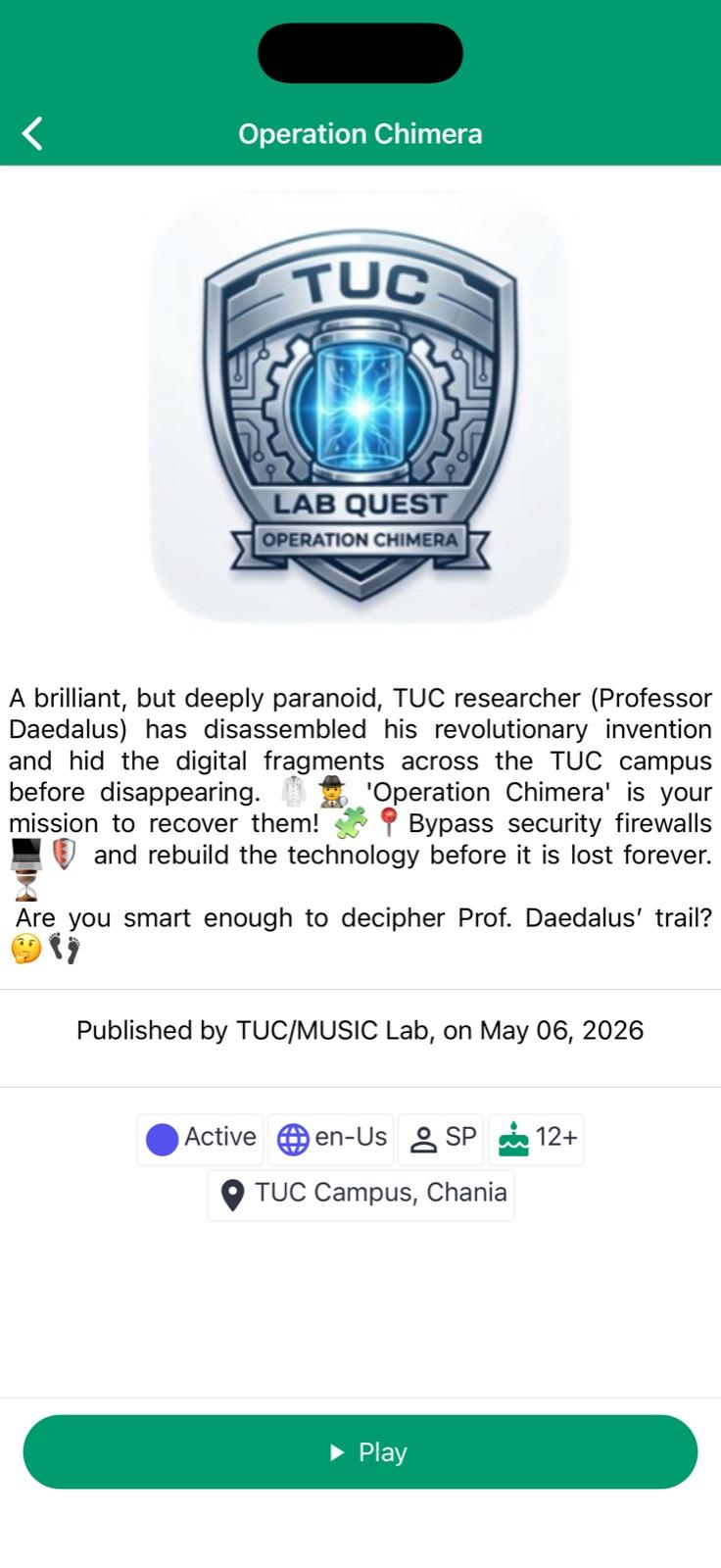 |
Every way to a game leads to its game page: the game's logo, description, status, language, age and area, and links to its terms and instructions. From there the player taps Play (or Continue for a game they are playing). A game in progress can also be abandoned there with Drop out.
Entering a Game
The first time a player enters a game, a short guided flow prepares everything the game needs. It shows only the steps that apply to your game, with a progress bar at the top:
- Consent, when the game master asks players for consent.
- Passcode, when the game is protected with one (designers of the game skip it).
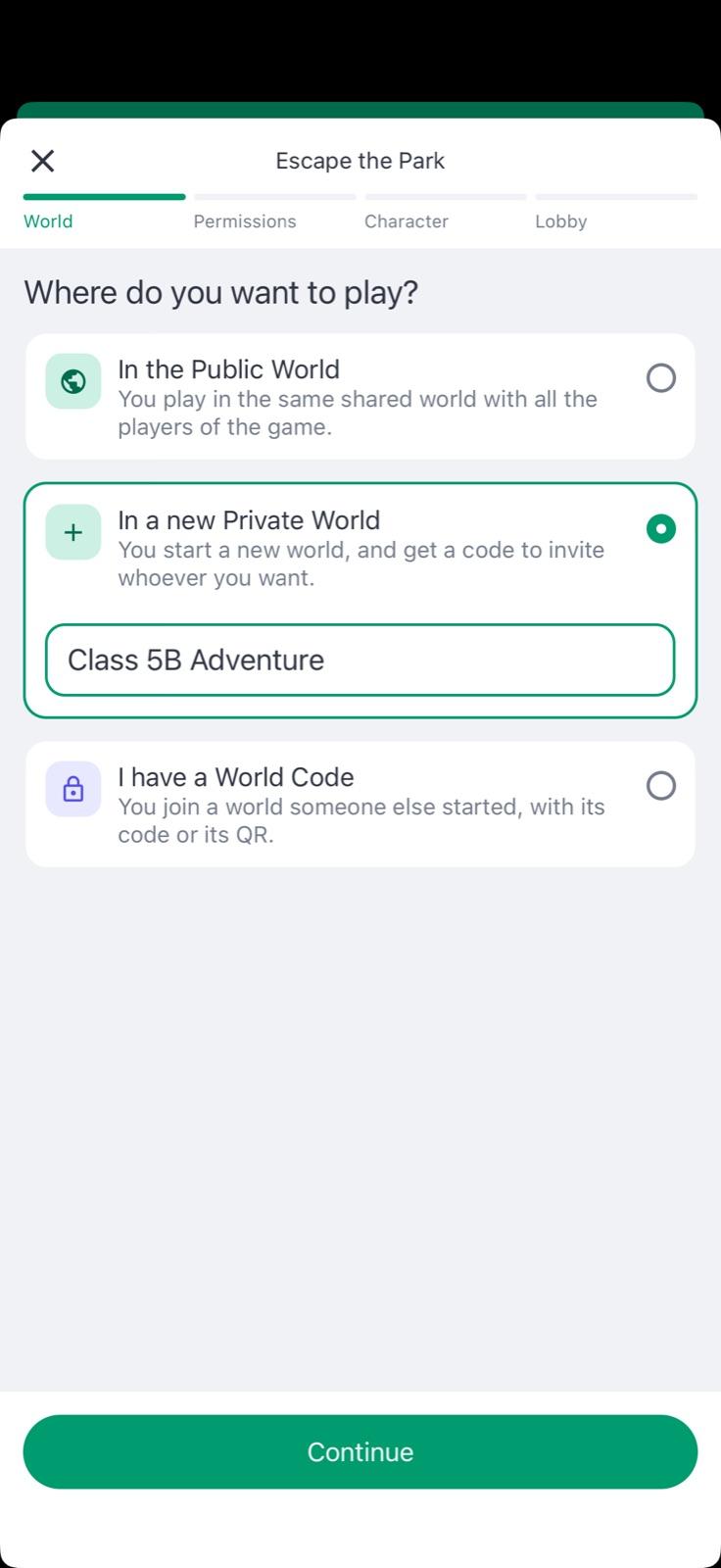
- World: where the player wants to play. Shown only when your game uses private worlds.
- Permissions: only those your game needs, each with the reason (for example the location for a map game).
- Character: the player's avatar: photo, name, age group and sex, with what your game requires marked.
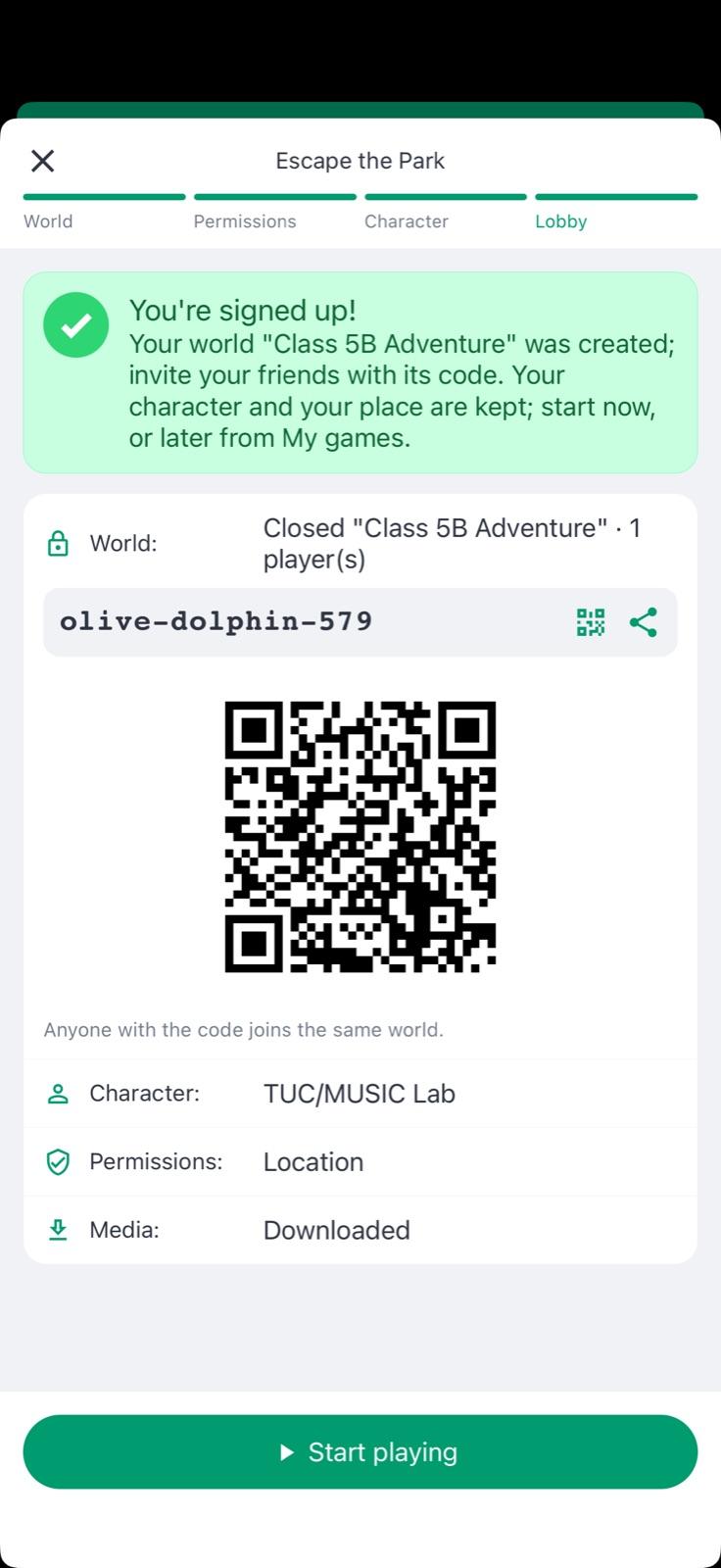
- Lobby: a summary of the world, the character, the permissions and the game's media, which are downloaded here. For a private world, the lobby also shows the world's code and QR code, to invite others. Start playing enters the game.
The player can stop at the lobby and start later from My games: their character and their place are kept. A returning player sees only the steps that need an answer again (for example a new consent), or none at all, and goes straight into the game.
 |  |
Public and Private Worlds
A game can be played in the Public World, which every player of the game shares, or in private worlds: worlds that only the players who have their code can join (a school class, a group of friends, a team of colleagues). Whether your game offers private worlds, and who can create them, is up to you (see Playing Mode).
- Creating a world. In the World step the player chooses In a new Private World and gives it a name. The app
creates the world and gives it a code such as
olive-dolphin-579, with a QR code and a Share button. Game masters can also prepare worlds in advance, for example one per class (see Private Worlds). - Joining a world. The player types the code in Got a world code? on Home, scans its QR code, opens a shared link, or chooses I have a World Code in the World step.
- One world at a time. A player is in one world of a game at a time. To play in another world they first drop out of the current one.
- Managing a world. Inside the game, the creator of a private world finds World Settings in the More tab: the code to share, the members, and options to rename the world, limit the number of players, close it to new players (or reopen it) and remove a member. A removed member cannot join again with the code.
What a private world means depends on the type of your game:
- In a multi-player game, each private world is a separate game instance with its own game world, cloned from your initial world. Its players share that world only with each other.
- In a single-player game, each player still plays in their own game instance; the players of a private world are ranked together on the leaderboard.
Inside a Game
Inside a game, four tabs replace the ones of the home screen. A tab whose content your game turns off (see Policies → While Playing) is not shown.
| Tab | What the player finds there |
|---|---|
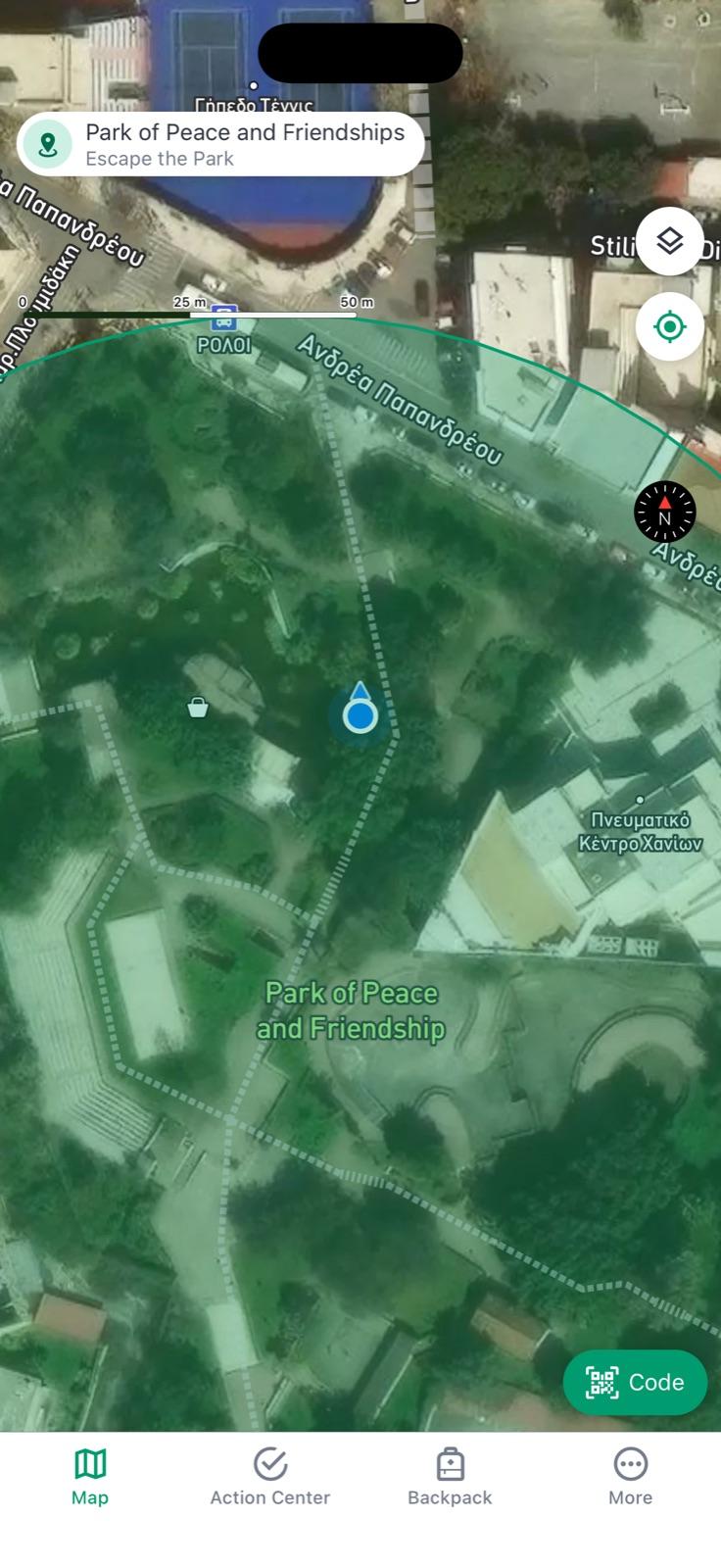
| Map (or Play) | The playground: the map with the player's position and the objects around them, or, in a game with a backdrop, the Play screen. A strip at the top names the current scene, and the Code button opens code scanning and typing. |
| Action Center | Missions with their progress, ToDos (what is waiting for the player: questions to answer, quizzes and conversations to finish), and Activity for games with physical tasks or the activity meter. A badge counts the pending ToDos. |
| Backpack | The player's objects and items, their traits (attributes) and, when the market is on, their wallet. Tapping an asset shows what can be done with it: sell it to the game, sell it to a player, or drop it on the map. |
| More | The game page, Directions (the messages and conversation statements you marked as instructions, once the player has seen them), Offers, Player Rankings, World Settings (in a private world), How to play (the game instructions), the location status, and Leave for now. |
 | 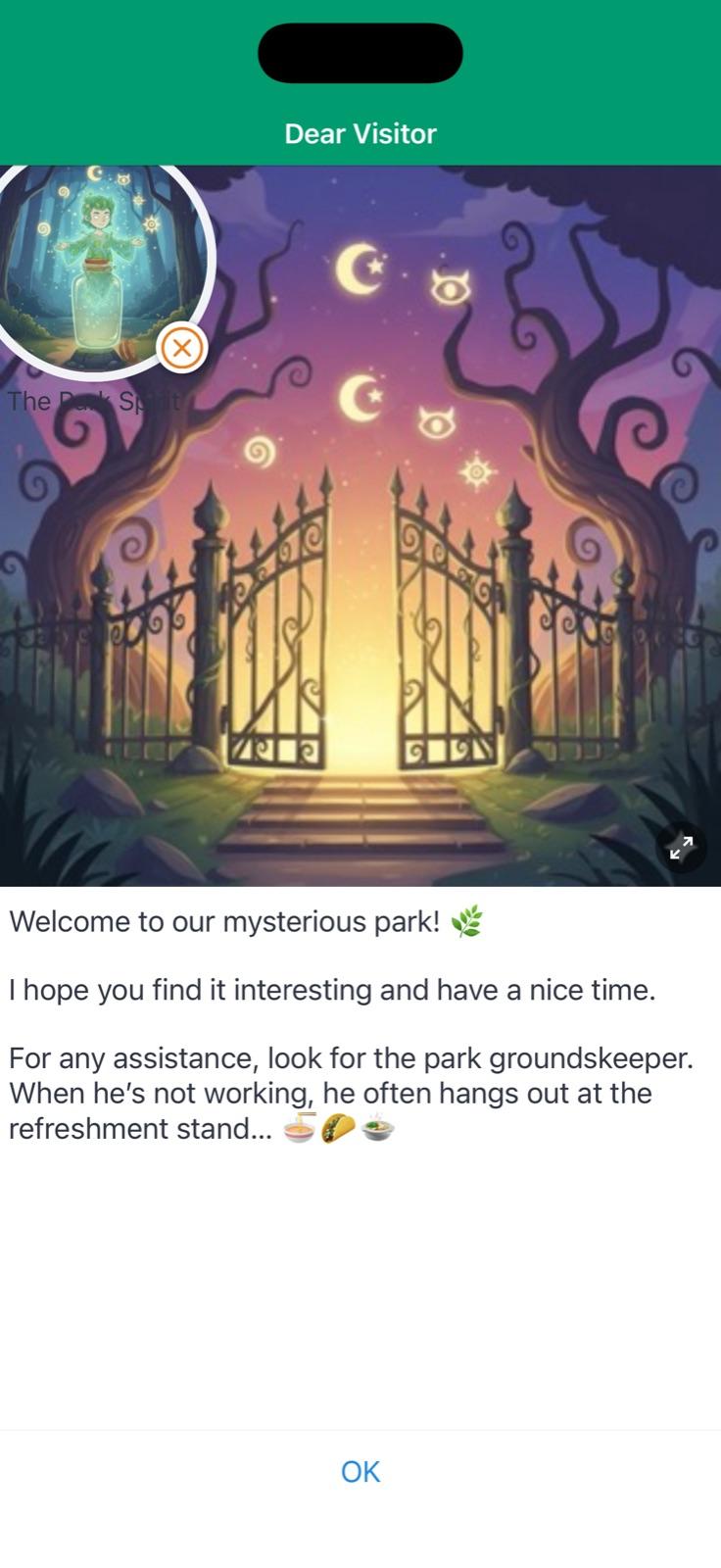 |
What the game shows the player (a message, a question, a quiz, a conversation, an object, a mini-game) opens over the tabs and covers them until the player has finished with it.
Leaving and Coming Back
Leave for now (in More) exits the game: the player's progress is kept and the game stops using their location. They come back with Continue on Home or from My games. Before leaving, the app sends any progress that has not reached the server yet and warns the player if it cannot.
Drop out (on the game page) leaves the game for good: the player's progress in that game instance is lost. Entering the game again starts it from the beginning.
Picking Up Where the Player Left Off
A player may close the app, lose the battery, or get a phone call while something your game showed them is still on screen: a question waiting for an answer, a conversation half-way, a quiz, a mini-game. The app keeps track of it. When the player opens the game again, on the same phone or on another, the app says "Picking up where you left off" and shows it again:
| Interrupted | When the player comes back |
|---|---|
| Message (info) | Shown again. |
| Question | Asked again. A question with several attempts keeps the attempts already used. |
| Quiz | Reopened, with the answers already given filled in. |
| Confirmation | Asked again. |
| Conversation (or chat) | Resumed at the last statement the player saw, even if the conversation is not resumable: an interruption is not an exit. |
| Mini-game (external task) | Reopened. A task that only calls a web address is treated as a failed call and is not called again. |
| Object, offer, capture | Shown again. |
Whatever was waiting behind it (for example a second message your rules showed right after) follows in the same order. If the player had already answered just before the app was closed, the answer is not asked again: the rules waiting for it run once, exactly as they would have without the interruption.
For you as a designer this means: every rule that waits for the player to finish something gets its answer, even if the app was closed in between. You do not need to design detours for players whose phone died in the middle of a scene. An interaction is dropped only when it no longer applies, for example when the game has ended or the element was removed from the game in a later publish.