World Patching
When a game instance starts, its world is a copy of your game's initial world. If you later fix something in the initial world (a misplaced object, a wrong quantity, a missing offer), only instances started from then on get the fix. The instances that are already running keep their old copy.
World Patching pushes such a correction into running instances. It compares the version's initial world (the spec) with each active instance, shows you every difference, and applies the ones you choose.
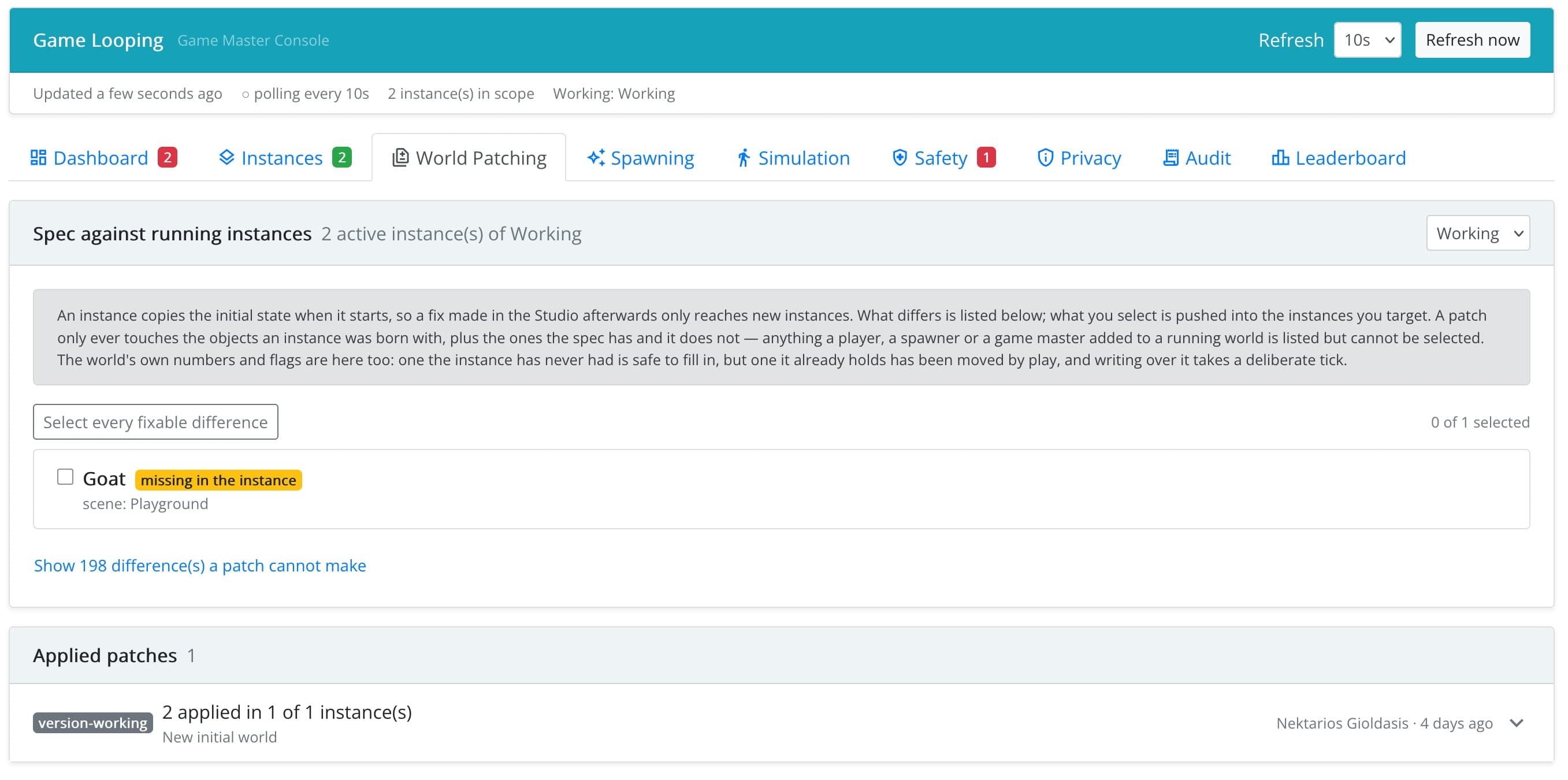
Step 1: Find the Differences
Pick the version to compare. The panel lists every difference between its spec and its active instances:
| Difference | Meaning |
|---|---|
| missing in the instance | The spec has it; the running instance does not (e.g. an object you added to the initial world). |
| differs | The same object or value, with different values. Expand it to compare field by field. |
| only in the instance | The instance has it; the spec does not. Selecting it deletes it from the instance. |
Tick the differences to fix, or Select every fixable difference.
A patch only touches what the spec put in the instance. Things that play put in the world (objects a player made, objects a spawner produced, objects a game master added to one instance by hand) are listed but cannot be selected. Differences where play has already changed a world value (e.g. players took some of an item the world held) are marked: fixing them writes over what play has done.
Step 2: Choose Where to Apply It
| Target | Applies the patch to… |
|---|---|
| This instance only | The instance you came from. |
| Every active instance of the working version | Your testers' instances. |
| Every active instance of the public version | Live play. |
| Instances I pick | The instances you tick. |
A patch never crosses from one version into another unless you choose that version.
Step 3: Preview, Then Apply
Preview shows exactly what each instance would do: how many operations it would apply and which it would refuse, and why. An instance refuses an operation, for example, when it is no longer active or when a player is carrying the object concerned.
Apply asks for a confirmation and a reason. Players in the affected scenes see the change immediately.
Patch the working version first and check the result by playing it, then patch the public version.
Patch History
Applied patches lists every patch, including changes you made in the World tab and applied to other instances: when, by whom, why, the operations, and the outcome per instance (applied, refused or failed, with the reason). Patches that failed somewhere are highlighted, and also appear on the Dashboard.