Simulation
Simulation lets you move a player around the map from the console, as if they were walking. Use it to test a map game without leaving your desk, to rehearse a route before a live event, or to show a game to someone.
Positions are sent to the player's app exactly as the game engine would receive them from the phone's GPS. Nothing about the game is faked: scenes, places, missions and physical tasks all react as they would on a real walk.
The Simulation panel is only offered for games played on a map. A game whose playground is an image has no positions to drive.
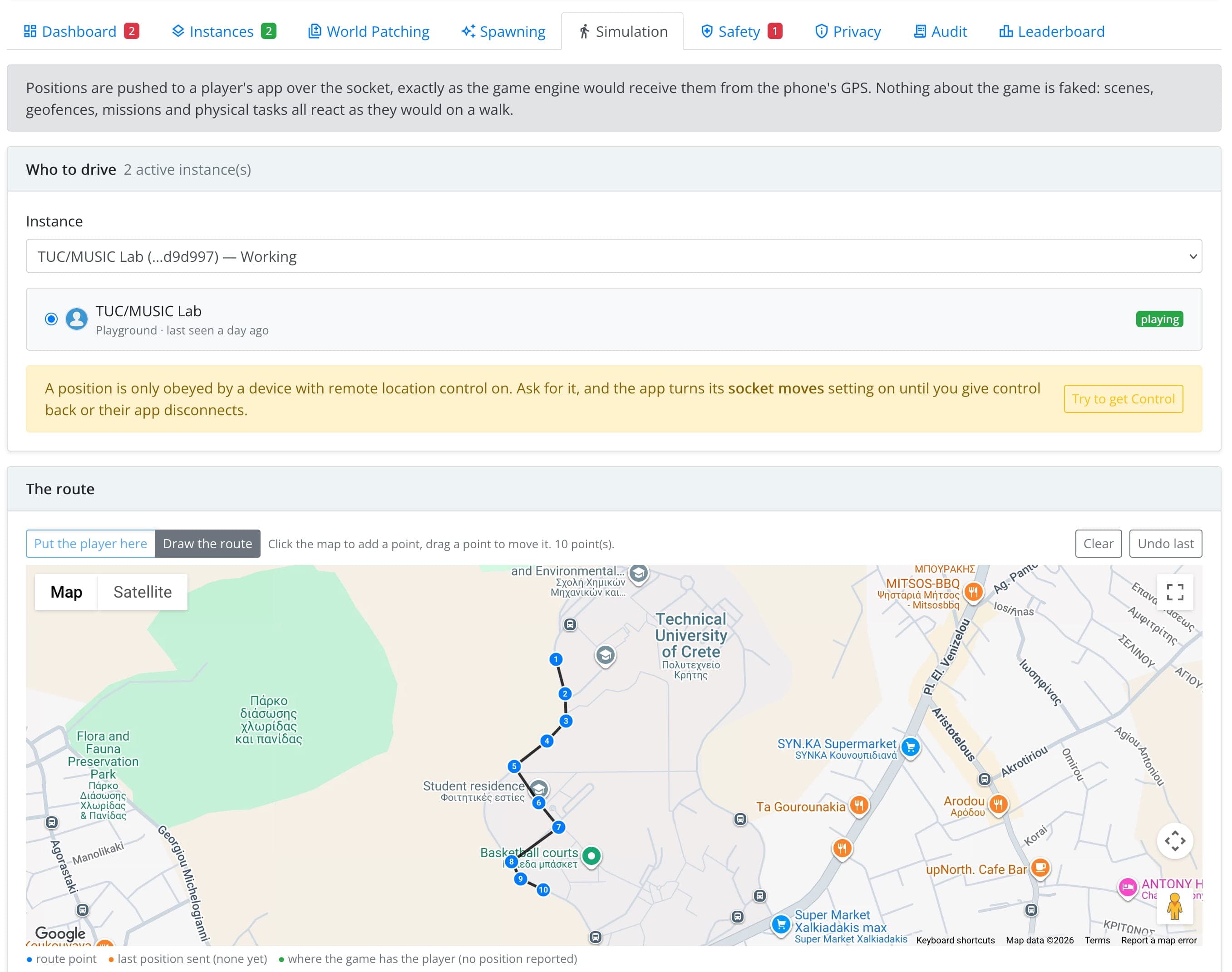
Step 1: Choose Who to Drive
Under Who to drive, choose an active instance and a player in it. Usually this is you or a tester, playing the working version on a phone.
A phone only obeys positions from the console while it is under remote control. Click Try to get Control: the player's app switches to taking its position from the console until you click Give control back, or until the app disconnects. After that, the phone uses its own GPS again.
Remote control is meant for test players. The player sees their position move without walking, so only drive players who know it will happen.
Step 2: Draw a Route
Choose Draw the route and click the map to add points. The scenes of your game are shown on the map to help you. You can:
- drag a point to move it, and double-click it to remove it;
- set how long the player should stand still at each point (e.g. to wait for a conversation to finish);
- Undo last or Clear the route.
To send a single position without drawing a route, choose Put the player here and click the map.
Step 3: Walk It
Under Walk it, pick a Speed: walking (1.4 m/s), jogging (3 m/s), cycling (6 m/s) or driving (14 m/s). Then Play. You can Pause, Rewind, and have the walk loop back to the start. A progress bar shows where the player is on the route.
Saved Routes
Routes you use often can be saved: type a name under Save the drawn route as, and save. Saved routes lists them; Load one to walk it again, or delete it.