Dashboard
The Dashboard is the console's landing page. It answers, without a click, is anything wrong right now, and where? It has four parts: health tiles, the attention feed, the live map and the instance strip.
If the playing period of the game has ended (or not started yet) while instances are still active, a banner at the top says so.
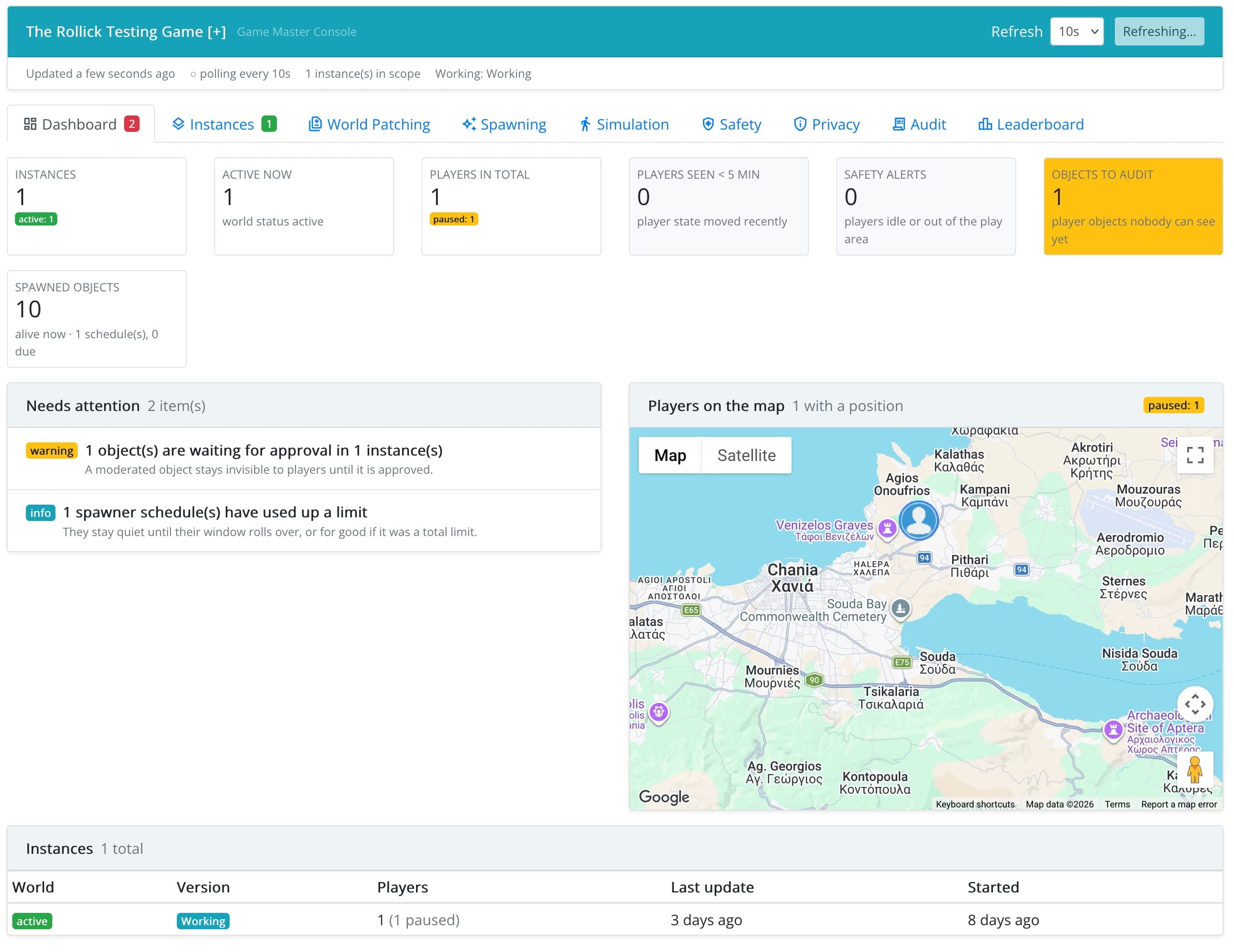
Health Tiles
| Tile | Shows |
|---|---|
| Instances | The number of instances in scope, broken down by world status. |
| Active now | Instances whose world is active. Click it to list only those below. |
| Players in Total | All players, broken down by player status. |
| Players Seen < 5 min | Players whose state changed in the last few minutes, i.e. who are playing right now. |
| Safety alerts | Open safety alerts, with how many are new and of which kind. Click it to open the Safety panel. |
| Spawned objects | For games with spawners: the spawned objects alive now, the schedules due and any that are failing. Click it to open the Spawning panel. |
| Objects to Audit | Objects created by players that wait for your approval and that nobody can see yet (see World). |
Needs Attention
The attention feed is a ranked list of problems a game master should act on, most urgent first. Each line groups all the instances with the same problem, and Show takes you to them. For example:
- Open safety alerts (see Safety).
- The playing period is over, but instances are still active. Expire them so their players are told the game has ended (see Instances).
- A world patch failed on at least one instance in the last day (see World Patching).
- Objects are waiting for approval.
- Spawners that failed on their last run, whose settings are invalid, or that have used up a limit (see Spawning).
- Instances are completed, expired or terminated but players are still marked as playing. Their app may never have been told the game ended.
When there is nothing to act on, the feed says Nothing needs attention.
Players on the Map
For map games, every player of every active instance in scope is shown on one map, with a count of players per status. Click a player to open their player detail.
Instance Strip
At the bottom, one row per instance, most recently updated first: world status, version, players (for a single-player game, the player's name) with their statuses, last update and start time. Clicking a tile (e.g. Active now) narrows the strip. To act on an instance, open it from the Instances panel.