Game Master Console
The Game Master Console is where you run a game once people are playing it. It answers two questions at a glance (is anything wrong right now, and where?) and gives you the tools to act: message players, fix the world of a running game instance, rescue a stuck player, keep an eye on player safety and manage the personal data the game keeps.
The console is about the present: every figure comes from the current state of the game instances and players. To study how players went through your game over time, use Game Analytics.
Opening the Console
- From your home screen, click Game Master Console on the game's card, or
- from inside a game, choose Game Master Console in the top menu (next to Game Design, Game Settings and Game Analytics).
The console is available to the game's owner, its authorised designers and Rollick administrators. Other users get a Denied message.
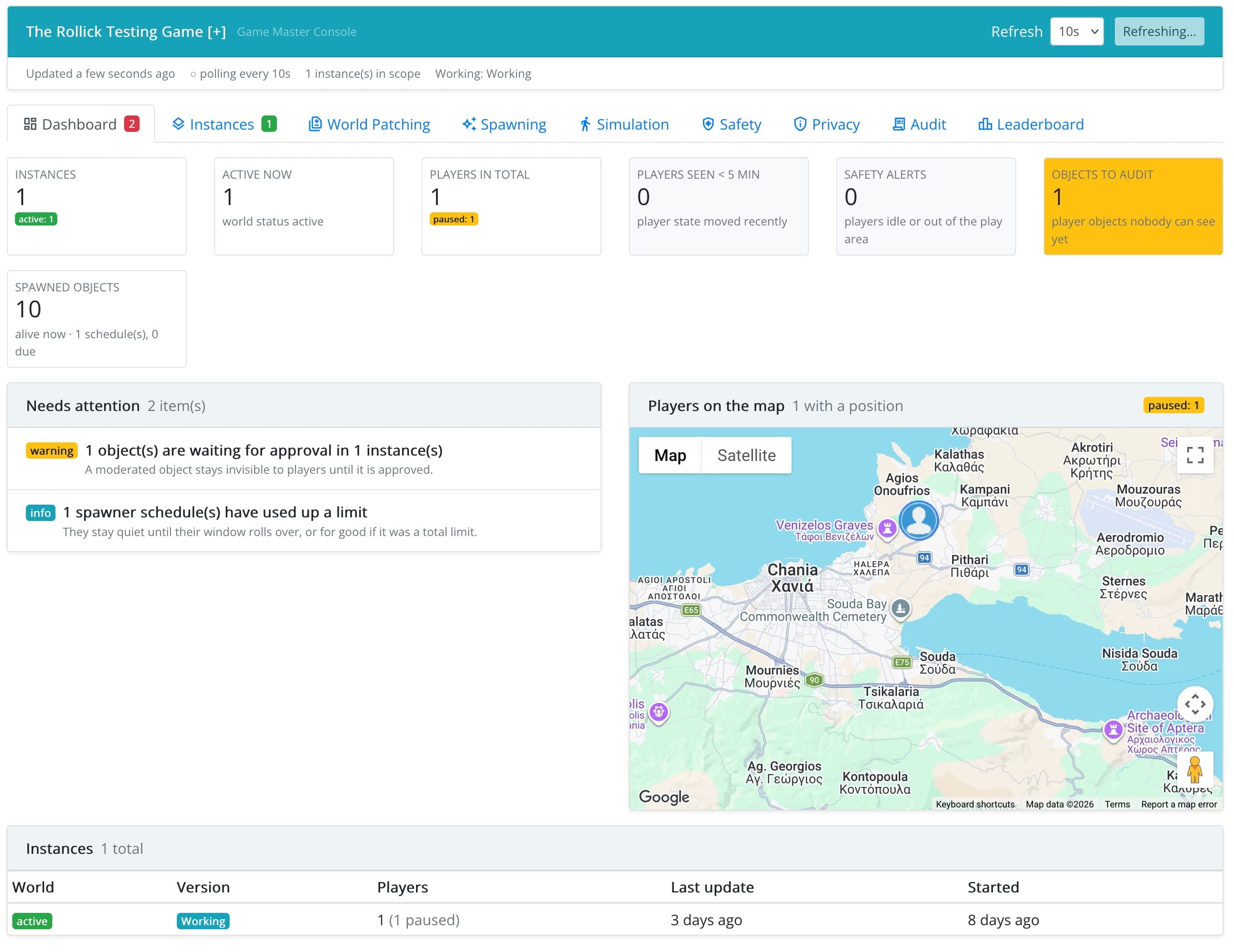
The Scope Bar
The bar at the top of the console applies to every panel:
| Control | What it does |
|---|---|
| Showing | Which game instances you are looking at: those of the working version (you and your testers), of the public version (real players), or both. It is only offered when both versions exist. |
| Refresh | How often the console reloads its data: off, every 5, 10, 30 or 60 seconds. Refresh now reloads at once. |
| Status line | When the data was last updated, and whether the console is live (the server tells it about every change) or polling at the chosen interval. It also shows how many instances are in scope and the labels of the working and public versions. |
Every console page has its own address, including the scope. You can bookmark it or send the link to a co-designer.
Panels
| Panel | Use it to… |
|---|---|
| Dashboard | See what needs attention, where players are, and every instance at a glance. |
| Instances | Filter and act on game instances; open an instance to see its players and its world; help a single player. |
| World Patching | Push a correction of the game's initial world into instances that are already running. |
| Spawning | Follow your object spawners in the running instances, and find out why one does not spawn. |
| Simulation | Drive a test player's position along a route on the map (map games only). |
| Safety | Be alerted when a player goes quiet or leaves the play area. |
| Privacy | Decide how long player positions are kept, and ask players for consent. |
| Audit | See everything game masters did through the console. |
| Leaderboard | See the full ranking of a version, with each player's values. |
Some tabs show a badge: the number of items that need attention (Dashboard), of active instances (Instances) and of open safety alerts (Safety) and of failing spawners (Spawning). The Spawning panel is shown only for games with spawners. The Simulation panel is left out for games whose playground is an image, since there are no positions to drive.
Game Instances and Their Status
A game instance is one running copy of your game, with its own world. In a single-player game, each player gets their own instance; in a multi-player game, players share one (see Games and Game Instances). The console shows the status of each instance's world, and of each player:
| World status | Meaning |
|---|---|
| active | The game is being played. |
| completed | The game was completed. |
| abandoned | The players abandoned the game. |
| expired | The playing period ended while the game was still active. |
| terminated | A game master ended the instance. |
| Player status | Meaning |
|---|---|
| playing | The player is in the game. |
| paused | The player has paused the game. |
| left game | The player left, or was removed from the instance. |
| moved | A game master moved the player to another instance. |
Acting Safely
Everything that changes a running game goes through a confirmation dialog that says exactly what will happen and whom it reaches.
- Actions that reach players ask for a reason. Players see it, and it is kept in the audit trail.
- Actions that cannot be undone (terminating, deleting, resetting) ask you to type a word (e.g.
delete) to confirm. - Every action is recorded in the audit trail: who did what, when, where, and with what result.
The console acts on real games with real players. Try things on the working version first: set Showing to the working version and play the game yourself.