World
Every game instance has its own world: the objects and offers placed in its scenes, and the items and characteristics the world holds. It starts as a copy of your game's initial world and changes as the game is played. Open an instance in the Instances panel and choose its World tab to see and change it.
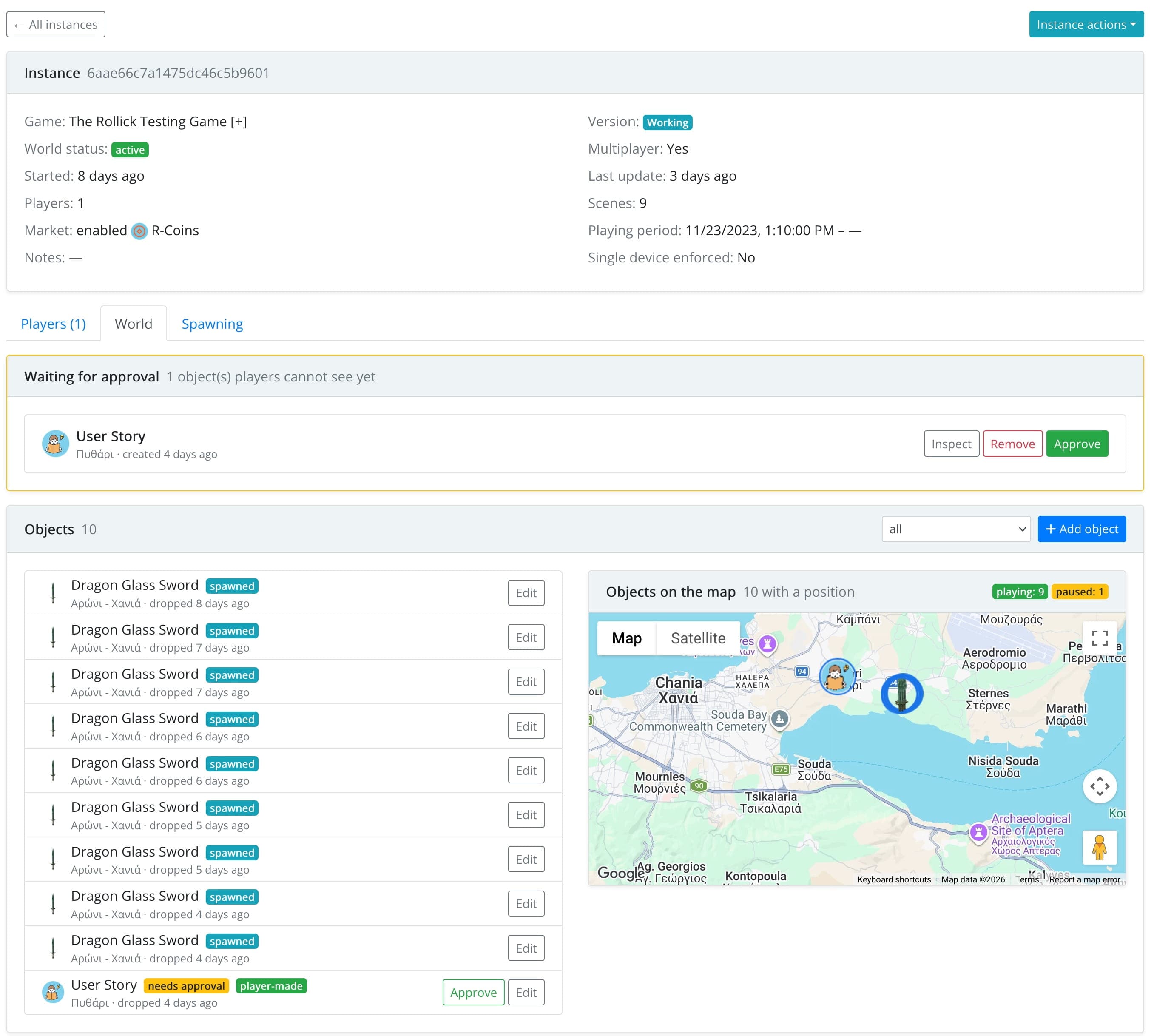
What the World Holds
- The world owns: the world's items (with their quantity), its characteristics and the skills attributed to it.
- Objects and Offers: every object and offer in the world, on a list and on the map, with the scene each is in. Click a row to find it on the map.
- Full world state: the complete world state, as stored.
Filter the objects by where they came from: from the spec (placed by you in the initial world), created by a spawner, created by a player, or awaiting approval.
Changing the World
- Add object and Add offer place a new object or offer in a scene of this instance.
- Edit (or clicking an object on the map) opens it in the same form you use in the design environment: change its properties, move it, or remove it.
Players in the affected scene see the change right away.
Applying a Change to Other Instances Too
In a single-player game every player has their own instance, so fixing a misplaced object in one instance fixes it for one player only. When you save a change and other instances are still running, the console asks: Apply this elsewhere too?
You can apply the same change to the other running instances of the same version or, only if you pick it, to those of the other version (working or public). By default, the change stays in the instance you edited. The offer also tells you how many of those instances already hold the object.
Objects a player is carrying, and objects players created, are left alone. Every instance reports what it applied and what it refused, and the whole change is recorded as a patch.
To push a correction of the initial world (i.e. something you fixed in the design environment) into instances that are already running, use World Patching: it compares the spec with each instance and shows every difference.
Approving Player Objects
For an object type that players can create, you can require approval (Approval is required in the object type's settings). An object a player creates of that type stays invisible to other players until a game master approves it.
Objects waiting for approval are listed under Waiting for approval, at the top of the World tab, and counted on the Dashboard (Objects to Audit). For each one, Inspect it, then Approve it or Remove it.