Instances & Players
The Instances panel lists the game instances in scope. Open one to see its players and its world, and to help individual players.
The Instance List
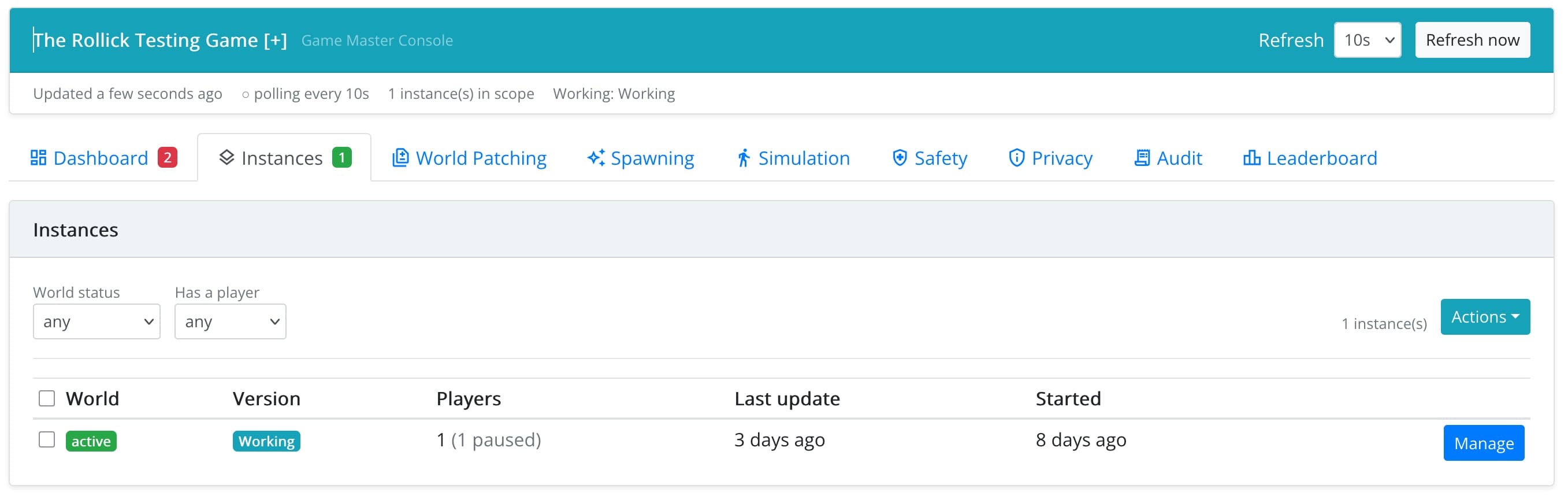
Each row shows the instance's world status, its version, its players (or, in a single-player game, the player's name), when it was last updated and when it started. Narrow the list with the filters above it:
- World status: e.g. only active instances.
- Has a player: instances with at least one player in a given status, e.g. playing.
- Version: one version of the game (only when the scope covers more than one).
Manage opens an instance.
Acting on Many Instances
The Actions menu acts either on a whole version (pick one version in the filters first) or on the instances you tick in the list.
| Action | On a whole version | On selected instances |
|---|---|---|
| Send a message | Reaches every player of the version. | Reaches the players of the selected instances. |
| Change the playing period | Changes the start and end of the version's playing period; every instance of the version is affected. | — |
| Expire | Marks every active instance as expired and tells its players that the game has ended. Offered once the playing period is over. | Expires the selected active instances. |
| Terminate | Ends every instance of the version that is not already terminated. | Ends the selected instances. |
| Delete | — | Removes the selected instances and their player states from the database. |
Terminate and Delete cannot be undone. Terminating keeps the record of what players did; deleting removes it altogether. When a playing period ends, Expire is usually what you want: players are told the game is over and everything is kept.
Instance Detail
The instance page starts with a summary: game, version, world status, whether it is multi-player, when it started and was last updated, players, scenes, market currency, playing period, notes, and whether a single device is enforced.
Instance actions lets you send a message to this instance's players, change the playing period (of its whole version), terminate the instance or delete it.
Below the summary are the instance's tabs:
- Players: the players of the instance, on a list and on the map. Click a player to open their detail.
- World: the objects, offers and items of the instance's world (see World).
- Spawning (games with spawners): the spawner schedules of this instance (see Spawning).
Player Detail
Selecting a player shows who they are (avatar name and email), their status, whether they are live (seen in the last few minutes), the scene they are in, when they were last seen and when they joined, and the device they play on.
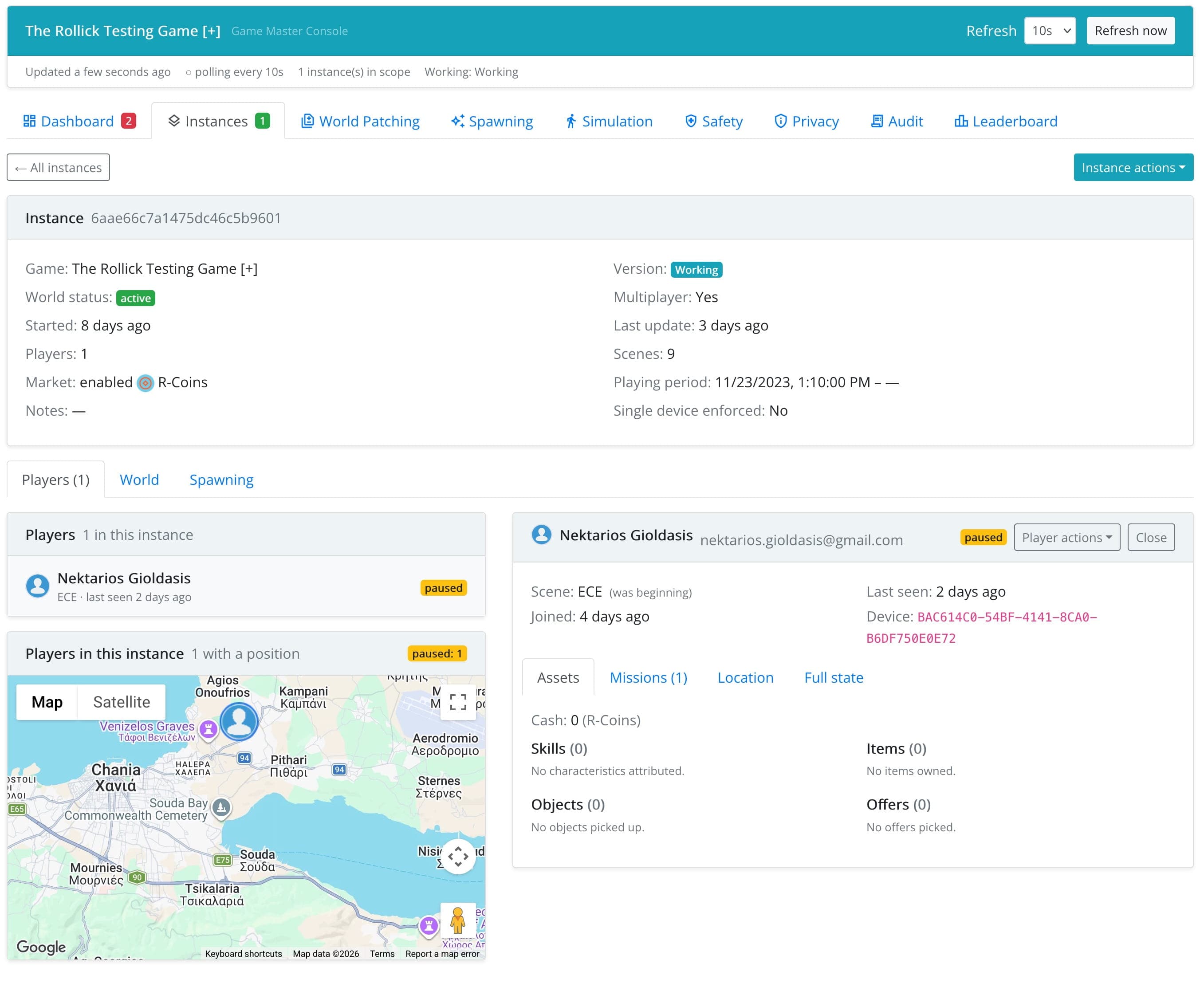
Four tabs describe the player:
| Tab | Shows |
|---|---|
| Assets | Cash, skills, items, objects (marking those created by a spawner), offers (and whether they were redeemed), and former skills. |
| Missions | Every mission the player has been assigned, with its progress; see below. |
| Location | Where the player is on the map, if they have ever reported a position. |
| Full state | The player's complete game state, as stored. |
Missions
The Missions tab lists the player's missions in two groups:
- Repeating missions, one round per period (see Repeating Missions). For each one: how often it repeats and in which time zone; how many rounds were opened, how many were done, failed or dropped; the current streak (and the best one); how many rounds are left, if the repetition has a limit; the open round and when it ends; and the history of past rounds, each with its outcome and, for physical tasks, how far the player got.
- Other missions, with their status, the last activity and the progress of their physical task, if any.
A round whose period has already passed is flagged: rounds roll over on the player's phone, so this player has not opened the app since that round ended. The next time they do, the round is closed and a new one opens.
Helping a Player
Player actions offers the remedies for a player who is stuck:
| Remedy | What it does |
|---|---|
| Send a personal message | A message to this player only. |
| Clear the device binding | If the game does not let players change device (Players cannot change device in the game settings), a player with a new or reset phone is locked out. Clearing the binding lets them continue: the next device they open the game on is bound instead. |
| Reset this player's progress | Starts the player over in this instance. Their avatar stays; with Let them keep what they are carrying, so do their items, objects and cash. Everything they have done is gone and cannot be recovered. |
| Move to another instance | Moves the player, with all their progress, to another active instance of the same version, e.g. away from a broken instance. Objects they carry come with them but no longer exist in the world they left. |
| Remove from this instance | Ends the game for this player. Their state is kept and marked as left, with the reason you give, which is what they see. |
The player's app is told about a reset, a move or a removal right away, and reloads the game from the server.