Game AI Settings
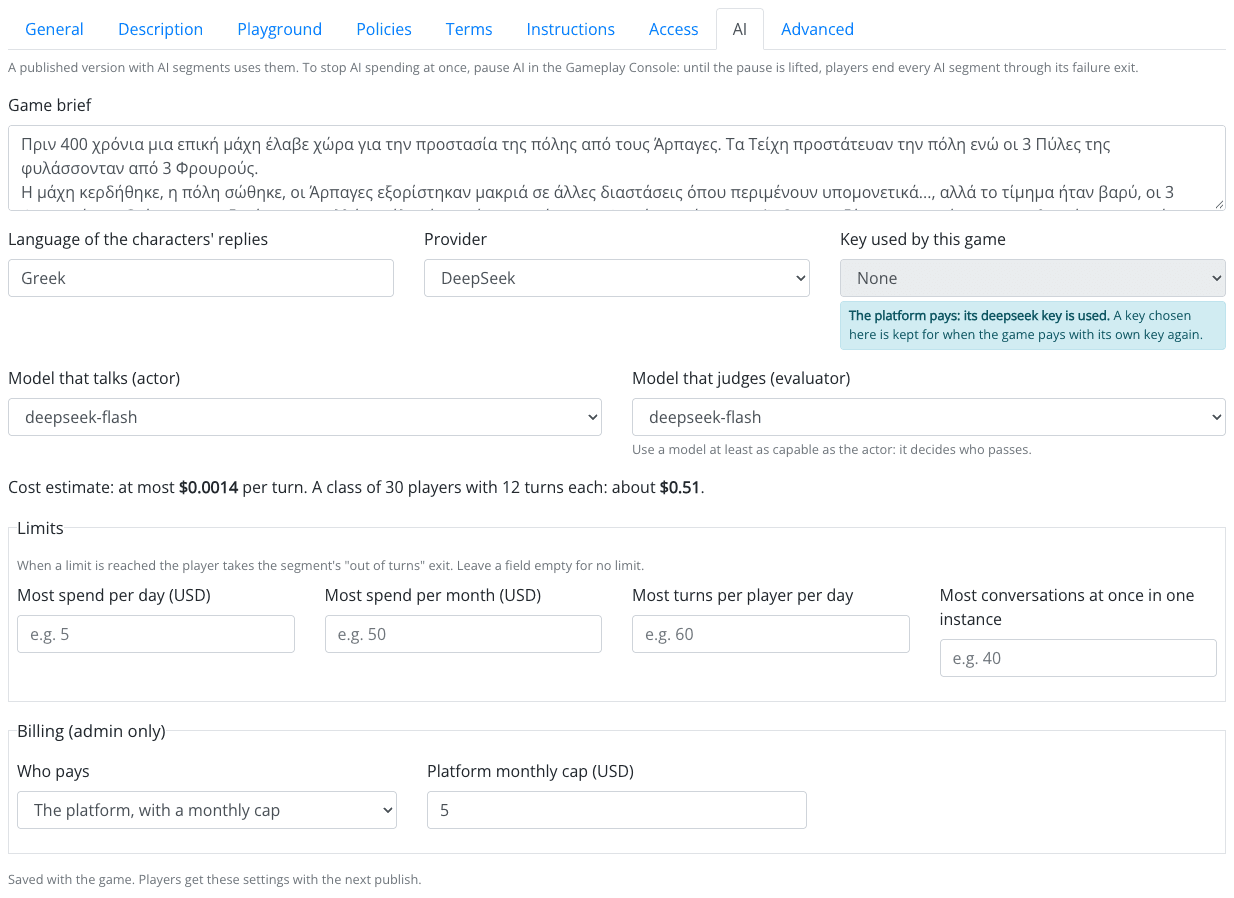
The AI settings of a game are in Game Settings → AI. They are shared by the three AI features of Rollick: AI characters, drafting with AI and the AI review of the plot. The tab is shown for a saved game that has at least one of them enabled, and shows only what the game's features need. The settings are saved together with the rest of the game settings (Save).
Every designer of the game can change the brief and the language. The provider, the models, the key and the limits decide how money is spent, so only the game's owner and administrators can change them; other designers see them read-only.
The Game and Its Language
| Setting | What it does |
|---|---|
| Game brief | What the game is about, in a few sentences. Every AI character of the game gets it as background, so it knows the world it lives in; every AI draft gets it too, so it fits the game; the AI review of the plot checks the scenario against it, so also say who the game is for and what players should come away with. Keep it short and factual; it is not shown to players. |
| Language | The language the characters answer in, e.g. Greek. Normally the language of your game. The lines you write yourself (opening lines, default responses, suggested replies) must be written in that language too. It is also the default language of AI drafts (a draft can ask for another one). |
Provider, Key and Models
A provider is the company that runs the language models (e.g. Anthropic, OpenAI, Google Gemini, DeepSeek). Your administrator decides which providers and models the platform offers, and at what price.
Default Provider and Key
| Setting | What it does |
|---|---|
| Default provider | Whose models the game uses. Every task below uses it, unless you give the task a provider of its own. |
| Key | The API key that pays for the calls. A game uses its owner's keys: the list shows the keys of the game's owner for this provider. If you have none yet, follow Add one in your account. Only the owner (or an administrator) can choose the key. |
Tasks
Each AI task of the game has its own model. The tab shows the tasks of the features the game has:
| Task | Feature | Its model… |
|---|---|---|
| Talks to the players (actor) | AI characters | writes the characters' replies. Pick one that writes well in your game's language. |
| Judges the players' answers (evaluator) | AI characters | judges the player's messages. Use a model at least as capable as the actor: it decides who passes. |
| Drafts content (Artifact Creator) | Drafting with AI | writes the AI drafts: messages, questions, quizzes, conversations, items, attributes, profiles and rules. |
| Reviews the plot (Plot Check) | AI review | reads the whole scenario and reviews it. Use a capable model. |
A task can also run on another provider, with its own key: choose it under the task's Provider and key (Default uses the default provider and key). For example, one provider to talk and judge, and another to draft. A task's model is chosen among its provider's models, and only among the models your administrator has made available for that task. If there is none, the tab says "The platform has no … model for …. Ask an admin."
Every task is paid the same way and counts towards the same limits.
For AI characters, a cost estimate under the tasks says what a turn costs at most, and what a class of 30 players with 12 turns each would cost, e.g. "at most $0.004 per turn. A class of 30 players with 12 turns each: about $1.44". It is unknown until both models have a price in the platform catalogue.
The platform pays. If your administrator has decided that the platform pays for your game, the tab says so, and the platform's key is used instead of yours (for a task with a provider of its own, the platform's key of that provider). A key chosen here is kept for when the game pays with its own key again. The platform then also sets a monthly cap for the game. Administrators see this choice in a Billing (admin only) box at the bottom of the tab: Who pays (the designer with their own key, or the platform with a monthly cap) and the Platform monthly cap (USD).
Your Provider Keys
Keys belong to people, not to games. You add them once, on your account page, under AI provider keys, and then choose one in the AI settings of each game you own that should use it.
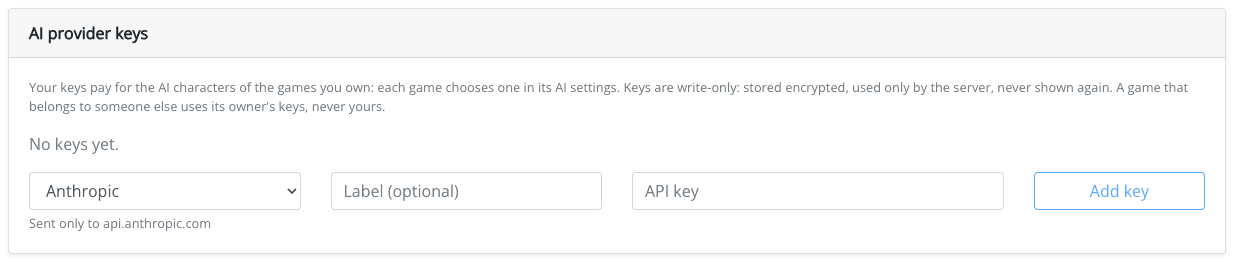
- Add a key: choose the provider, give it a label (optional) and paste the API key. The key is stored encrypted and is never shown again: the list shows only its label, its provider and its last four characters.
- Test a key: pick a model and send one tiny request. The list says when the key was last tested and whether it worked.
- Each key lists the games of yours that use it. Removing a key wipes it; the games that used it can no longer talk until they get another key.
A game that belongs to someone else (e.g. one you design as an authorised designer) always uses its owner's keys, never yours. Some platforms do not allow designers to add their own keys; the account page then says so.
Limits
Limits protect you from surprises. Leave a field empty for no limit.
| Limit | What it does |
|---|---|
| Most spend per day (USD) | What the game may spend on AI calls in a day: its players' conversations, AI drafts and AI reviews together. |
| Most spend per month (USD) | The same, per month. |
| Most turns per player per day | How many messages one player may send to AI characters in a day. |
| Most conversations at once in one instance | How many AI conversations may run at the same time in one game instance (useful in multi-player games). |
When a limit is reached, the player takes the segment's Out of turns exit: the conversation ends normally and the game goes on. AI drafts and AI reviews are refused until the limit allows them again. The turn and conversation limits apply to AI characters only.
The Published Game
Like everything else in your game, AI settings reach players with the next publish. The Published game box shows which provider and models the published version uses, and lists what is not in it yet.
If you need a change to reach players now (e.g. a new key because the old one stopped working, or a stricter spending limit), use Apply to the published game. Players get the new settings from their next message, conversations in progress included. Conversations and characters stay as published until the next publish.
To stop all AI spending at once, do not change the settings: pause AI in the Game Master Console. Until you lift the pause, players end every AI segment through its Not available exit.