Mini-games
A mini-game is a small HTML5 game or app that runs inside a Rollick game. When the player reaches it, Rollick pauses the game, opens the mini-game full screen, and resumes once the mini-game reports how the player did. Your game can then react to the result: give a reward, unlock the next scene, or mark a mission as accomplished.
Mini-games are played through an interactive External Task. An External Task can open any web page you host yourself (its URI); a mini-game is the same idea, except that Rollick hosts it for you:
- you upload a
.zipof your game to the Studio, or pick a ready-made one from the Rollick library; - Rollick checks it, stores it, and serves it from a separate, sandboxed address, so it cannot reach your game data or the players' accounts;
- the mini-game describes the inputs it reads and the result it reports, so you can wire it into a task without reading its code.
Typical uses:
- learning activities: a physics simulation or a logic puzzle as a step of an educational trail;
- challenges that gate progress: solve the puzzle to open the treasure chest;
- skill checks with a score that feeds the leaderboard or a player attribute;
- custom interfaces that Rollick's own elements do not offer, such as a drawing pad or a WebAR scene.
Uploaded mini-games are an opt-in feature. If you do not see Mini-games in your game's library, ask an admin to turn it on in the game's settings (Advanced tab → Opt-in features → Uploaded Mini-games).
The Mini-games Library
Mini-games live in the Game Library panel of the Studio, under the Mini-games tab, next to the game's media. The tab has two views:
- This game: the mini-games uploaded to this game. You can upload, configure, preview, share and delete them.
- Rollick library: the mini-games every designer may use: Rollick's own (marked Rollick), and those other designers have shared (marked by their author). You can search them, filter them by language and tag, and preview them.
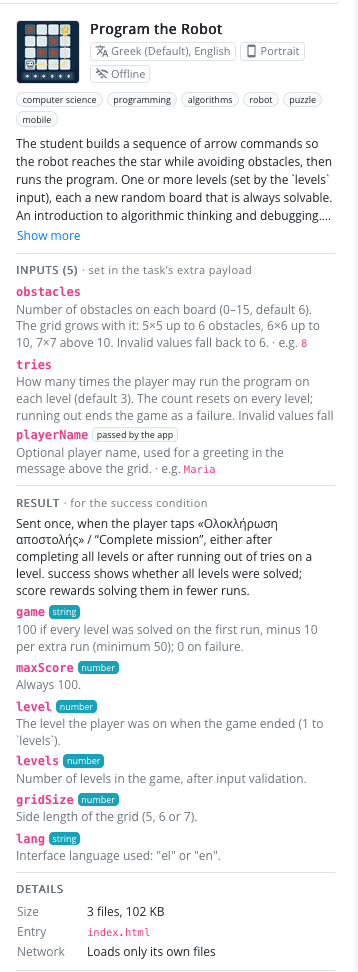
Select a mini-game to see its details: what it is about, the languages it speaks, its screen orientation, whether it works offline, its Inputs, its Result, its size, and how many games use it.
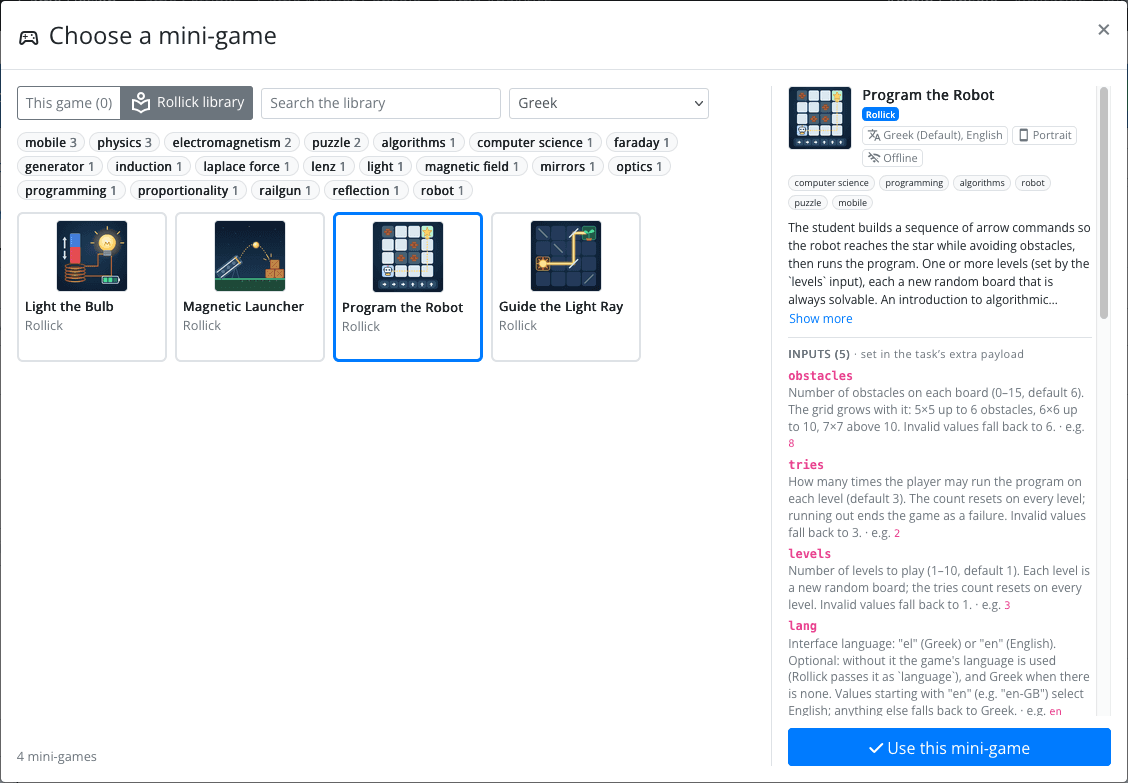
Rollick's Own Mini-games
The library starts with a set of educational mini-games made by the Rollick team. All of them work offline, speak Greek and English,
and report a success flag and a score out of 100.
| Mini-game | What the player does | Inputs | Topic |
|---|---|---|---|
| Guide the Light Ray | Rotates mirrors on a grid so a beam of light reaches the plant | mirrors (1–12), tries | Optics, reflection, spatial reasoning |
| Program the Robot | Builds a sequence of arrow commands so the robot reaches the star | obstacles (0–15), tries, levels (1–10) | Algorithmic thinking, debugging |
| Light the Bulb | Drags a magnet through a coil to light a bulb and charge a battery | levels (1–3), seconds, tries | Faraday's law, Lenz's law |
| Magnetic Launcher | Sets current, magnets and directions so a rail launcher hits the target | levels (1–3), tries | Laplace force, F = B·I·L |
Each one also accepts an optional lang (el or en) and playerName. The full description of every input and result field is in the
mini-game's details in the library.
Using a Mini-game in Your Game
Step 1: Create the External Task
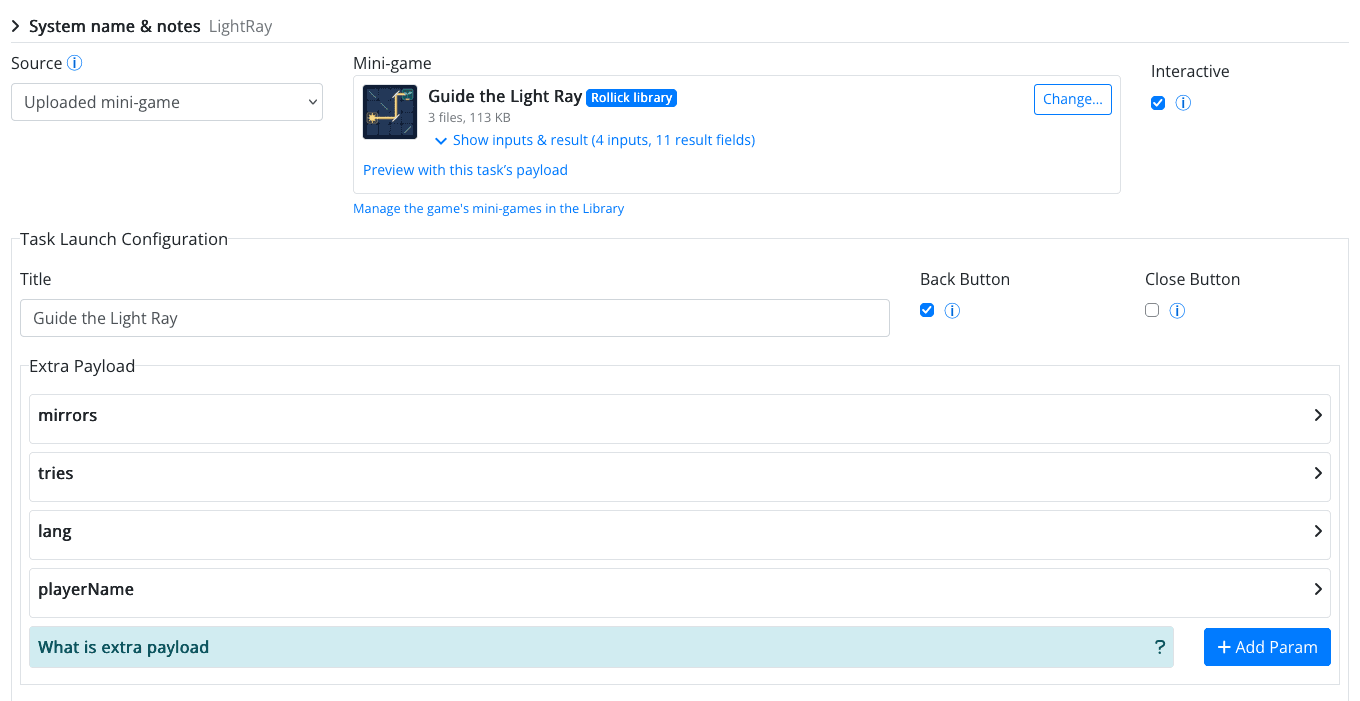
- In Game Elements → External Tasks, create a new task and keep it Interactive.
- Set Source to Uploaded mini-game. (The other option, Web address, is the classic External Task that opens a URI you host yourself.)
- Click Choose a mini-game…. The library opens as a picker: choose one from This game, drop a new
.zipthere, or switch to the Rollick library. Click Use this mini-game.
The task now shows a card of the chosen mini-game, with its inputs and its result. If the task had no title yet, it takes the mini-game's.
Step 2: Fill In the Inputs
When you choose a library mini-game, Rollick adds every input it reads to the task's extra payload, filled in with an example value. Adjust them to your game. Like any extra payload parameter, a value can be:
- a fixed string, e.g.
mirrors=6; - a state reference, e.g.
levels= the player'slevelattribute, so the challenge grows as the player progresses; - a state expression, e.g. whether the player owns a Hint item.
You do not need to add userId, instanceId, gameId or playerName: Rollick always passes them. The player's email is personal data
and is not passed, unless you add a parameter named userEmail (with any value: the app fills in the email).
Language. Rollick also passes the language to run in: your game's language when the mini-game speaks it, otherwise the mini-game's
default. A language (or, for Rollick's own mini-games, lang) parameter in the extra payload overrides it. When you browse the
library, filter it by your game's language: a mini-game without text suits any language.
Step 3: Decide What Counts as Success
The Result section of the mini-game card lists the fields the mini-game reports, with their types. Use them in the task's completion settings:
- Evaluate Successful Completion from Response: a condition on the result, e.g.
successequalstrue, orscoregreater than or equal70. The player then passes or fails the task, and your plot can react to either. - Store Response Data: keeps the whole result, or one Data Path of it (e.g.
score), in the player's state, for later conditions and value selectors. At most 4 KB is stored.
A mini-game closes itself when it reports its result, so players do not need a close button. Some mini-games never report one (the library says so, and the task warns you): for those, tick Close Button so players can leave and the task is marked as completed. Tick Back Button only if playing the mini-game is optional.
Step 4: Preview It
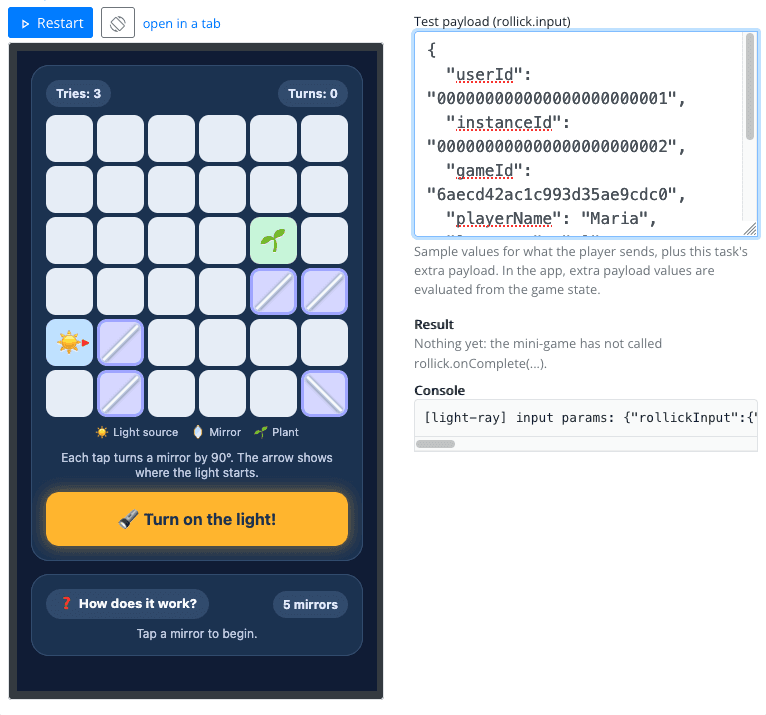
Click Preview with this task's payload on the mini-game card. The mini-game runs in a phone-sized frame, with:
- Start preview / Restart, a rotate button, and open in a tab;
- the Test payload (
rollick.input): sample player values plus your extra payload. Edit it to try other inputs. In the app, extra payload values come from the game state; - the Result the mini-game reported, its size, whether your success condition passes or fails, and what would be stored;
- the mini-game's Console, handy for spotting errors.
Step 5: Start It from the Plot
Start the task like any other game element: from a rule's side effect, a conversation, or a scene object. Then use the task's player state in your plot, e.g. a rule triggered when the player has passed the task gives them a key; one triggered when they have failed it offers another try.
Example. A science trail stops at the greenhouse. A rule, triggered when the player enters the greenhouse scene, starts the task Help the plant grow, whose mini-game is Guide the Light Ray
with mirrors = 6 and tries = 3. Its success condition is success equals true, and it stores the score. A second rule, triggered when the player has passed the task, gives them a Seed
item and the mission Greenhouse is accomplished. The stored score is added to the leaderboard formula.
Making Your Own Mini-game
Any HTML5 game or app can become a Rollick mini-game: hand-written HTML and JavaScript, a game made with Phaser, PixiJS or Three.js, a
Unity or Godot web export. It needs two things: an index.html, and a few lines of code that talk to Rollick.
To start from a working example, open the Library's Mini-games tab, click How to make a mini-game, and Download a starter template.
Talking to Rollick
Rollick gives your page a window.rollick object:
rollick.input | What Rollick passes in: userId, instanceId, gameId, playerName, language, and the task's extra payload, by parameter name. Convert values to the type you need (e.g. parseInt). |
rollick.onComplete(result) | Reports the result, once, as a JSON object. The mini-game then closes. Show your own end screen before calling it. |
rollick.close() | Leaves without a result (supported by newer app versions; for older ones, have the task show its close button). |
rollick.version | The version of the Rollick bridge, which also tells you that your game runs inside Rollick. |
<script>
  var input = (window.rollick && window.rollick.input) || {};
  var level = parseInt(input.level, 10) || 1; // always fall back to a sensible default
  var lang = (input.language || 'en-Us').startsWith('el') ? 'el' : 'en';

  function finish(score) {
    var result = { score: score, passed: score >= 10 };
    if (window.rollick) window.rollick.onComplete(result);
    else console.log('result', result); // outside Rollick, e.g. while testing locally
  }
</script>
Make your game work without window.rollick too, reading inputs from the URL query instead
(index.html?level=2&lang=en). You can then test it in any browser, using the dev tools' mobile view: mini-games are played on phones.
The rollick.json Manifest
A rollick.json file at the top of the zip describes your mini-game. Every field is optional, and what you set later in the Studio
wins over the file, but a complete manifest saves you (and the designers who will use your mini-game) a lot of typing.
{
  "entry": "index.html",
  "allowedHosts": ["api.example.org"],
  "permissions": ["camera"],
  "orientation": "portrait",

  "title": "Memory match",
  "description": "Match the pairs before time runs out.",
  "tags": ["memory", "kids"],
  "languages": ["en-Us", "el-Gr"],
  "language": "en-Us",
  "thumbnail": "img/thumb.png",
  "inputs": [{ "name": "level", "description": "1 to 3", "example": "1" }],
  "result": {
    "description": "passed is true when every pair was found",
    "fields": [
      { "name": "score", "type": "number" },
      { "name": "passed", "type": "boolean" }
    ]
  }
}| Field | Meaning |
|---|---|
entry | The page to open, index.html by default. |
allowedHosts | Servers of yours the mini-game may call (https, at most 5). Leave it empty for an offline mini-game. |
permissions | Device features it needs: camera, microphone, fullscreen. |
orientation | portrait, landscape or any. A landscape mini-game turns the phone's screen while it runs. |
title, description, tags, thumbnail | How the mini-game appears in the library. The thumbnail is an image inside the zip. |
languages, language | The languages it speaks (el-Gr, en-Us) and its default, which must be one of them. Use "language": "none" for a mini-game without text. |
inputs | The parameters it reads from rollick.input, each with a name, a description and an example. They become the task's extra payload. |
result | What it reports: a description and its fields, each with a name, a type and a description. They tell designers what a success condition can test. |
What a Mini-game May Contain
| Size | At most 50 MB zipped, 150 MB unpacked, 2000 files. |
| Documents | html, htm, css, js, mjs, json, map, txt, xml, csv, webmanifest |
| Code | wasm |
| Images | png, jpg, jpeg, gif, webp, avif, svg, ico |
| Audio, video | mp3, ogg, oga, wav, m4a, aac, mp4, webm, ogv |
| Fonts | woff, woff2, ttf, otf |
| 3D, game data | glb, gltf, bin, obj, mtl, atlas, fnt, data, ktx2, basis |
| Pre-compressed | .js.br, .wasm.br, .data.br and the same with .gz (as Unity exports them) |
Not allowed: programs, archives inside the zip, symbolic links, and password-protected zips.
Network. A mini-game can only load its own files. Anything else is blocked, including fonts and libraries on CDNs: put them in the zip.
To talk to your own server, declare it in allowedHosts. Use relative paths (img/cat.png, not /img/cat.png). Inline scripts and
eval are allowed; service workers are not.
Packaging
Zip the folder that holds your index.html. A zip made by right-clicking the folder works: when everything is inside one folder, Rollick
uses that folder as the top of the mini-game. Hidden files (such as .DS_Store) are left out.
Uploading a Mini-game
- Open Game Library → Mini-games → This game.
- Drop one or more
.zipfiles on the upload area, or click it to choose them. (You can also upload from a task's Choose a mini-game… picker.) - Rollick uploads and checks each zip, and shows a report.
The report tells you what Rollick found (number of files, size, entry page, allowed hosts, permissions) or, if the zip was refused, every problem with the file it concerns and what to do. The most common ones:
| Report | What to do |
|---|---|
No index.html (or no entry) at the top | Zip the folder that contains index.html, or set entry in rollick.json. |
| Files of this type are not allowed | Remove the file, or convert it to an allowed type. |
Loads a file over http:// | Use https://, or include the file in the zip. |
| Warning: will be blocked when it runs | The page refers to another server: add it to the allowed hosts, or include the file in the zip. |
| Warning: refers to a file that is not in the zip | Check the path and its upper/lower case. |
Warning: never calls rollick.onComplete(...) | The mini-game will never report a result: tasks using it need their Close Button, and success conditions will not work. |
Uploading the same zip twice does not store it twice: Rollick selects the existing copy. Each game, and each designer, has a storage quota for mini-games (currently 500 MB per game and 2 GB per designer): delete the ones you no longer use.
Mini-game Settings
Select an uploaded mini-game and click Settings to change its Title, Orientation, Notes, Allowed hosts, Permissions and Languages. The files themselves cannot be changed: to fix a bug, upload a new zip and choose it in your tasks.
From the same details you can Preview the mini-game, see which of the game's tasks use it, Download the files, and Delete it.
A mini-game that a task uses cannot be deleted: choose another source for the task first. Deleting a mini-game does not break the published versions of your game that use it: they keep working. Deleted mini-games can be brought back with Show deleted → Restore.
Sharing a Mini-game with the Platform
A mini-game you made can be offered to every designer of Rollick through the Rollick library.
- In Game Library → Mini-games → This game, select the mini-game and click Share to the library.
- Describe it for other designers. Most fields are filled in from your
rollick.json:- Title in the library and Description (required): what the player does, who it suits, how long it takes;
- Tags, a Thumbnail (one of the images in the zip), and Credits and license;
- its Languages;
- its Inputs (name, what it means, example) and its Result (a description, and each field's name, type and meaning). Describe them carefully: they are all a designer sees when wiring your mini-game into a task.
- Confirm that you made the mini-game, or have the right to share it and everything in it, and click Share for review.
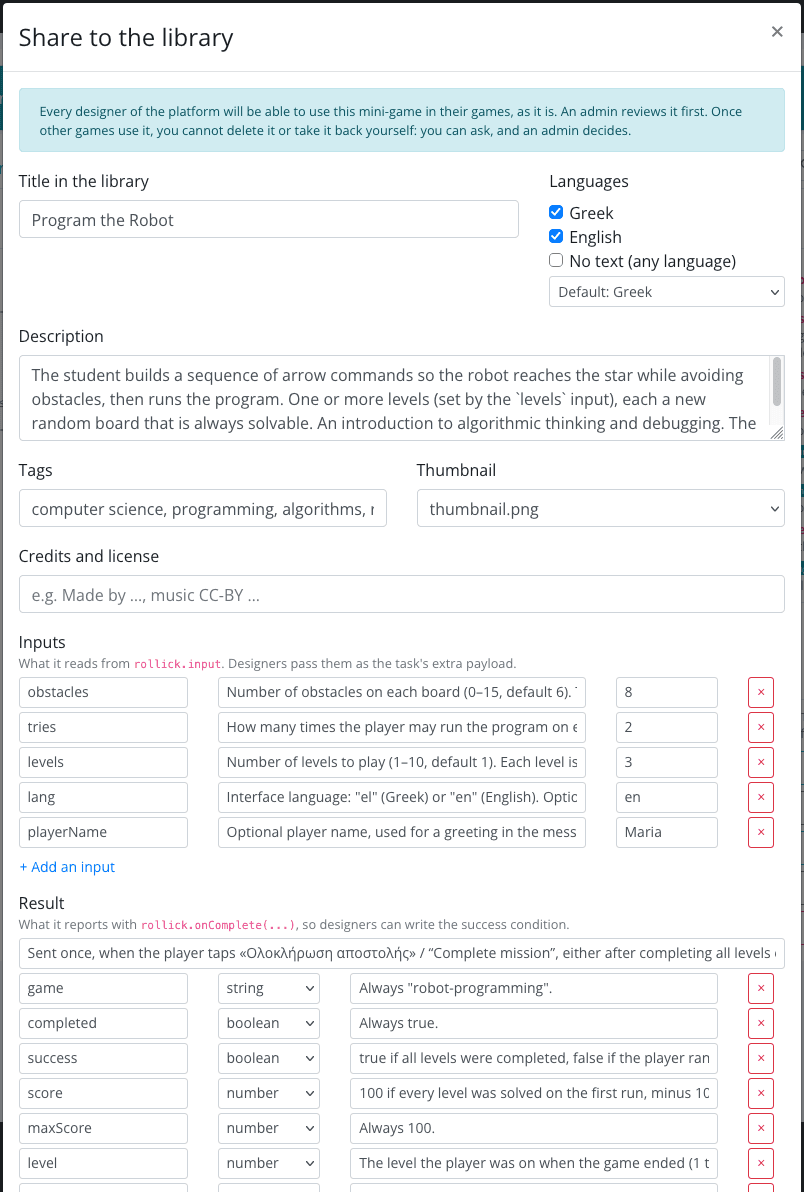
An admin reviews every shared mini-game before it appears in the library. A badge in its details shows where it stands:
| Badge | Meaning |
|---|---|
| shared, in review | Waiting for an admin. You can still edit its Library description. |
| in the library | Published: every designer can find and use it. |
| not accepted | The admin did not publish it; the review note says why. Fix it and share it again. |
| withdrawn from the library | No longer offered. Games that already use it keep it. |
You are notified by email of each decision.
What Changes Once It Is Shared
- Other games use your mini-game, as it is: the same files at the same address, not a copy.
- Its allowed hosts and permissions are fixed, because other games rely on them. You can still edit its library description.
- Taking it back. While no other game uses it, Withdraw from the library makes it private to your game again at once. Once other games use it, you cannot delete or withdraw it yourself: Withdraw from the library asks the admins, with your reason, and an admin decides whether to withdraw it (the games using it keep it) or keep it in the library.
- An admin may remove a mini-game that breaks the platform's rules. It then stops for every game that uses it, and players see an error page instead: the Studio warns the designers of those tasks to choose another one.
A shared mini-game runs inside other people's games, often in classrooms. Before you share it, make sure it works on a phone, in both orientations it allows, in every language it claims, without
your own server being down, and that it always reaches rollick.onComplete.
Copies and Archives
When you clone a game, or export it and import it on another Rollick server, its mini-games go along. Library mini-games that the game's tasks use are referred to again on a server whose library has them; on any other server, they become the imported game's own.
Quick Reference
| I want to… | Where |
|---|---|
| Use a ready-made mini-game | External Task → Source: Uploaded mini-game → Choose a mini-game… → Rollick library |
| Upload my own | Game Library → Mini-games → This game: drop the .zip |
| Test a mini-game with my task's inputs | The task's mini-game card → Preview with this task's payload |
| Pass a value from the game | The task's extra payload: a string, a state reference or a state expression |
| React to how the player did | Evaluate Successful Completion from Response + rules on passed / failed |
| Keep the score | Store Response Data, with a Data Path such as score |
| Offer mine to other designers | Select it → Share to the library |
| Learn the API | Game Library → Mini-games → How to make a mini-game |